Plan & Billing
What your organization has used and been charged lives in Settings → Organization → Plan & Billing, which is open to the Owner only. It has four tabs: Usage, Budget, Balance and Plan. How the team is performing is on the dashboard and in the reports of the Analytics section, not here.
Owner
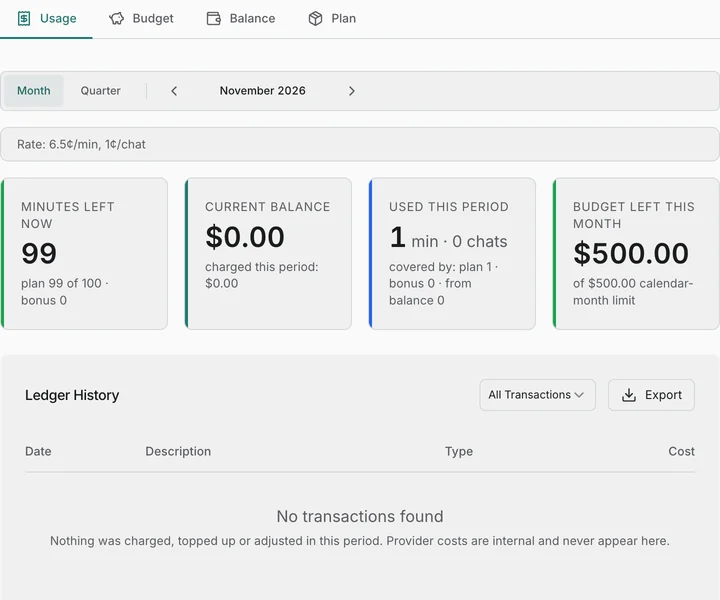
Open Settings → Organization → Plan & Billing → Usage. Switch between Month and Quarter and step through the periods; the screen shows:
| Block | What it shows |
|---|---|
| Rate | Your current price per minute and per chat |
| Minutes left now | What is left of the plan’s included minutes and of any bonus minutes. When both run out, the card says whether the balance takes over or analysis pauses. It does not follow the period selector |
| Current Balance | The wallet balance, with the amount charged in the selected period underneath |
| Used This Period | Minutes and chats processed in the selected period. Underneath, what covered them: plan minutes, bonus minutes, minutes taken from the balance, minutes over the plan, and chats paid from the balance |
| Budget left this month | What remains of the monthly limit, or No Limit when none is set |
| Ledger History | Every transaction: Date, Description, Type and Cost. Filter it with All Transactions, Per-Minute Charges, Chat Charges or Manual Credits; Show more loads more rows |
Owner
Calls and chats of a project in Transcript only mode (see Settings) are charged in fractions of a minute: a call minute counts as 0.25 of a minute, and a chat costs a quarter of the chat price.
- Ledger History. The line of such a call starts with “Transcript only, no analysis (×0.25)” and then gives the usual details. Its minutes are fractional: a call of 5:10 is 1.30 minutes, not 5.2.
- What covers it. The same as for any call: included minutes first, then bonus minutes, then the wallet.
- Analyze later. If you run Analyze on such a record, a second line follows for the full minute — 5.2 minutes for the same call. The record then has two lines, and Used This Period counts it as one record. The first line is not refunded or credited.
- Switching the mode does not rewrite the past. Turning the mode on or off changes the price of new records only.
Owner
Open Settings → Organization → Plan & Billing → Budget. The tab has two blocks.
Budget Status shows how much of the monthly limit has been used: the amount charged against the limit, the share as a progress bar, and the line “N% of this calendar month’s limit used”. Once the share reaches the warning threshold, the block adds Warning threshold reached.

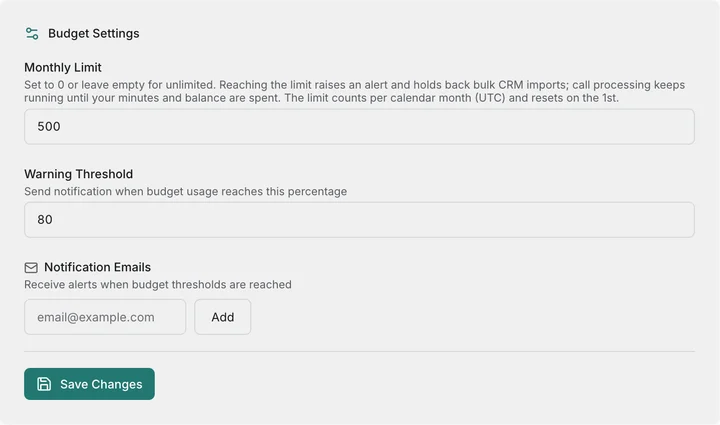
Budget Settings below it has the fields you can change; save when you are done:
- Monthly Limit — the most you want to be charged for usage in a month. Leave it empty or set it to 0 for no limit.
- Warning Threshold — the share, 80% by default, at which the Budget Status block turns to a warning. It does not change when notifications are sent: those shares are fixed (below).
- Notification Emails — a list of addresses; type one and click Add, remove it with the cross next to it.
Budget Status counts how much you have been charged for usage in the current calendar month; budget notifications and the bulk-import limit use this same amount. On self-serve plans usage is charged only beyond your included and bonus minutes, so the bar stays at zero until those run out, and the plan’s subscription fee is not counted.
The budget is a spending control, not a stop switch: a bulk CRM import whose estimate does not fit into the remaining budget is blocked, and you are notified as the budget fills up, but reaching the budget never pauses analysis. Analysis is paused only when your included minutes and any bonus minutes are used up and the wallet is empty.
Billing is calculated on a per-minute basis. A chat draws half a minute from that same included-minute allowance; once the allowance (and any bonus) is used up, only the uncovered part of the chat is charged, at a flat per-chat rate instead of the per-minute one. As usage crosses 50%, 80%, 95% and 100% of the monthly limit, a notification is sent in the app and by email to the organization’s owner and admins — these shares are fixed and cannot be changed. If one charge carries usage across several shares at once, only the highest of them is notified.
Owner
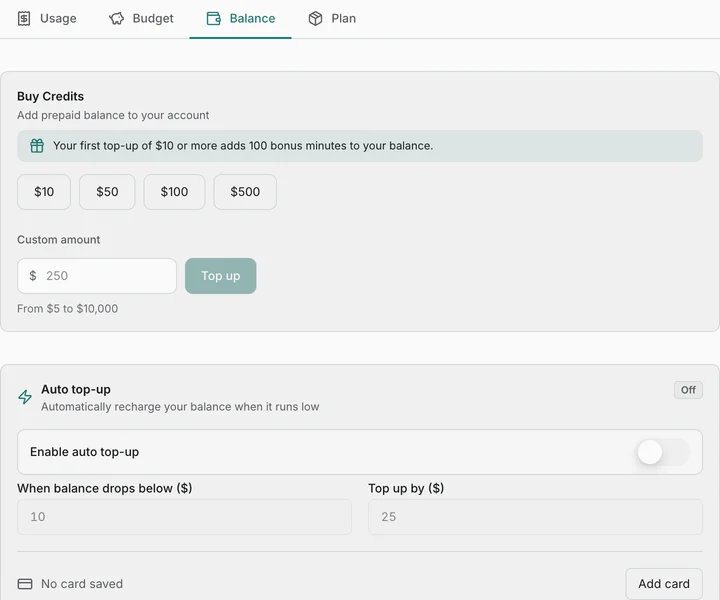
- Balance — Buy Credits and Auto top-up. If your agreement does not allow self-service top-up, the tab says so instead, and the current balance stays on the Usage tab.
- Plan — your current plan and the options to change it. More in Plan & Billing.
Owner
The Ledger History table on the Usage tab can be saved for further analysis in external tools:
- Optionally narrow the table with the type filter.
- Click Export above the table.
- Choose Export as CSV, Export as JSON or Copy to Clipboard.
- The file has the columns Date, Description, Type, Amount and Unit (USD, or minutes for bonus-minute entries).
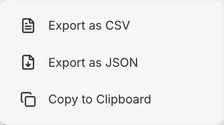
The export takes the rows loaded on screen. While more remain, the screen says “Export covers the N rows shown”: click Show more first if you need more.
| Feature | Owner | Admin | Supervisor | Rep |
|---|---|---|---|---|
| Usage tab | ✅ | ❌ | ❌ | ❌ |
| Budget tab (status and settings) | ✅ | ❌ | ❌ | ❌ |
| Balance and Plan tabs | ✅ | ❌ | ❌ | ❌ |
| Export of the transaction history | ✅ | ❌ | ❌ | ❌ |
The whole Plan & Billing section is closed to the other roles: they do not see it in the settings menu, and opening its link directly shows an access-denied page.
- Check the Budget tab regularly to stay within your monthly budget.
- Pick a monthly limit with some headroom: the 50% and 80% notifications are your early warning before the limit is reached.
- Read Minutes left now before a large import: it shows what the plan and bonus minutes still cover.
- Use the type filter on Ledger History to separate per-minute charges from chat charges before you export.
- Export the transaction history for finance reviews, and compare periods with the Month / Quarter switch.